
Mac Screenshot Improvement for Claude Code + Ghostty

A quick Automator + CLI screencapture hack to make quick screenshots to Claude Code running in Ghostty.
Create a hotkey-driven Automator workflow that captures the screen and lets you paste right into Claude Code running in Ghostty.
As my AI use has gone up, the amount of screenshots that I’m feeding into Claude Code has gone up as well. I decided it was time to optimize this part of my workflow.
I wrote this post originally with a more complex approach to managing screenshots:
- custom Automator > AppleScript > took screenshot > changed filename > opened in Preview > drug from Preview into target (Claude Code)
This worked pretty dang well but was a little slow. I would have to wait a second for Preview to get the image, then click hold a beat, then drag. This new approach smokes it.
Key Insight: you can capture screenshot directly to the pasteboard.
Once it’s there, you can paste into Claude Code.
TBH you can get what you need using Apple builtins:
⌘+⌃+⇧+4 will open interactive mode that will let you grab a box (via crosshair) or whole app window (via spacebar).
And bam, it’s in the Clipboard. (just the addition of that ⌃ key does that. (Who knew!?!)
Then you should be able to paste it.
But it wasn’t working for me.
A test in Preview: File > New from Clipboard confirmed my pasteboard was getting filled properly.
But when I would paste into Claude Code with ⌘+V — nada.
Turns out there is a ⌃+V (Control) alternative in Ghostty.
When using ⌃+V: smooth as butter.
This is a great solution. No Preview in the middle. Quick.
I don’t like the key combo though.
⌘+⌃+⇧+4 : that is a whole lot of keys on the left hand side of the keyboard.
I want the one I had wired already: ⌘+⇧+8
Here are updated instructions that are specific to Claude Code and Ghostty (since that’s where I am almost all the time now).
We still need this: A lightweight automation that combines Automator, an AppleScript, and a keyboard shortcut.
1. Custom Automator AppleScript
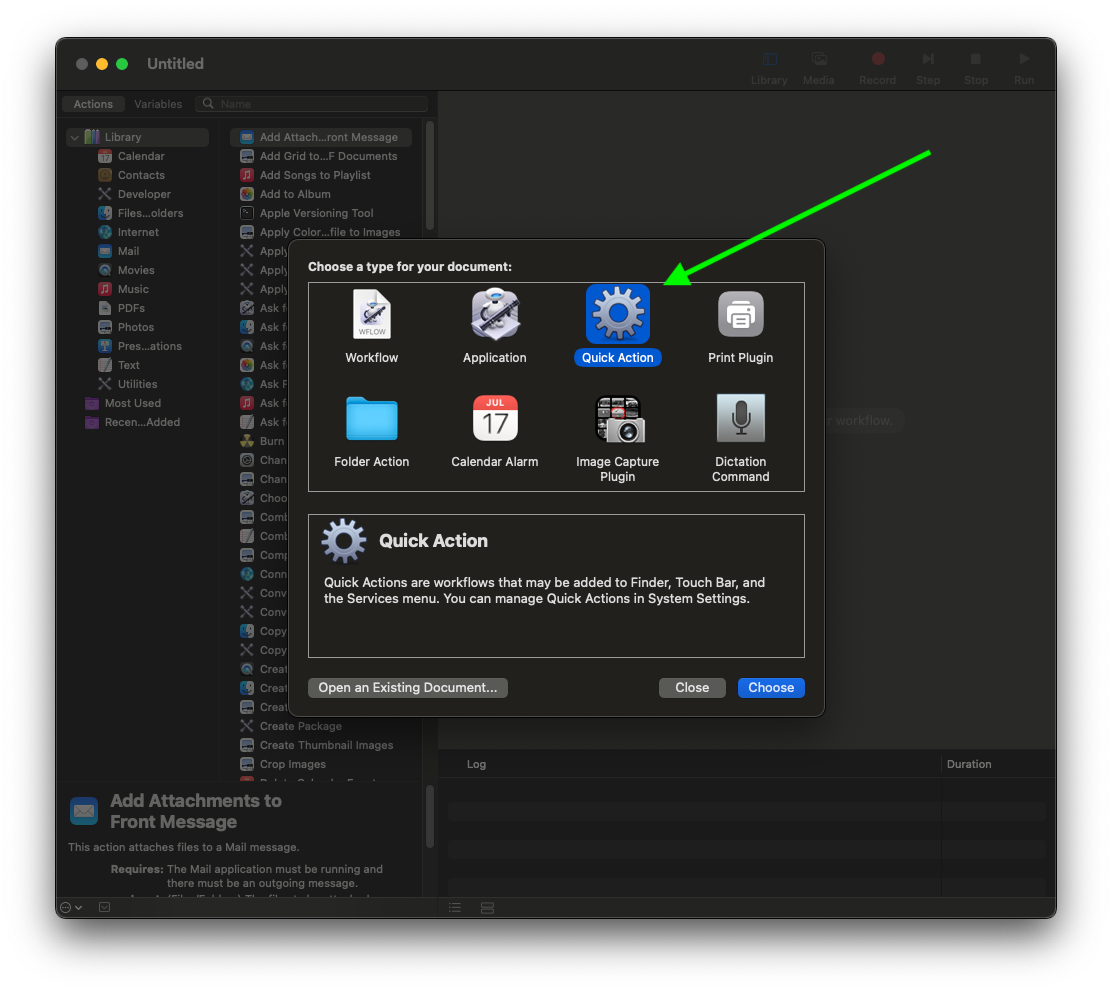
- In Automator choose Quick Action, set Workflow receives to
no inputinany application. - Drag Run AppleScript into the canvas and paste the script below.
on run {input, parameters}
    do shell script "screencapture -ci"
end run
Save it as ScreenshotAndOpen. Test with the ▶ button—macOS will prompt for screen recording permissions the first time.
Map the workflow to a hotkey
- Open System Settings → Keyboard → Keyboard Shortcuts.
- Under Services → General find
ScreenshotAndOpen. - Assign a comfortable shortcut; I use ⌘+⇧+8 because it sits next to the stock combos (⌘+⇧+3/4/5).
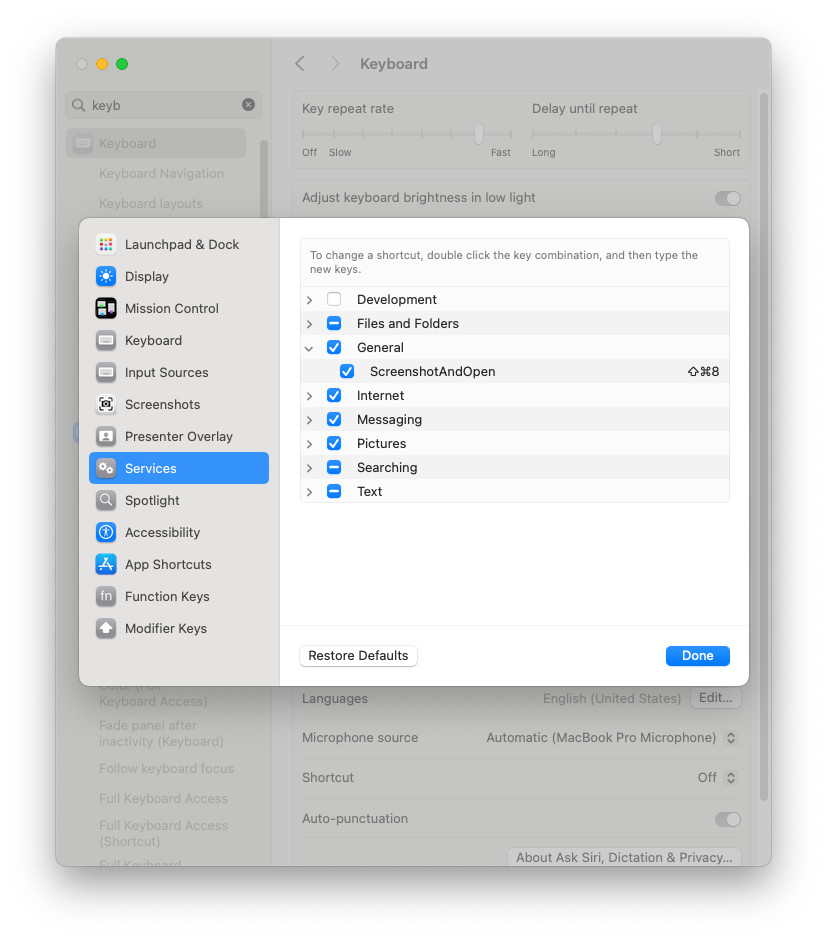
Whenever you hit ⌘+⇧+8, macOS captures the focused window (or crosshair selection) and writes it to your screenshots folder clipboard.
Then you are primed.
Pop over to Claude Code and drop the image in with ⌃+V (Ctrl-V).
This tiny workflow removes all the friction from screenshotting on macOS into Claude Code running in Ghostty.